
Schedule a recurring activity
Beginner 10 minUpdated 21 May 2026
To repeat the same slot on several dates, start from an activity template or a configured activity, place it once on the calendar, then use Copy.
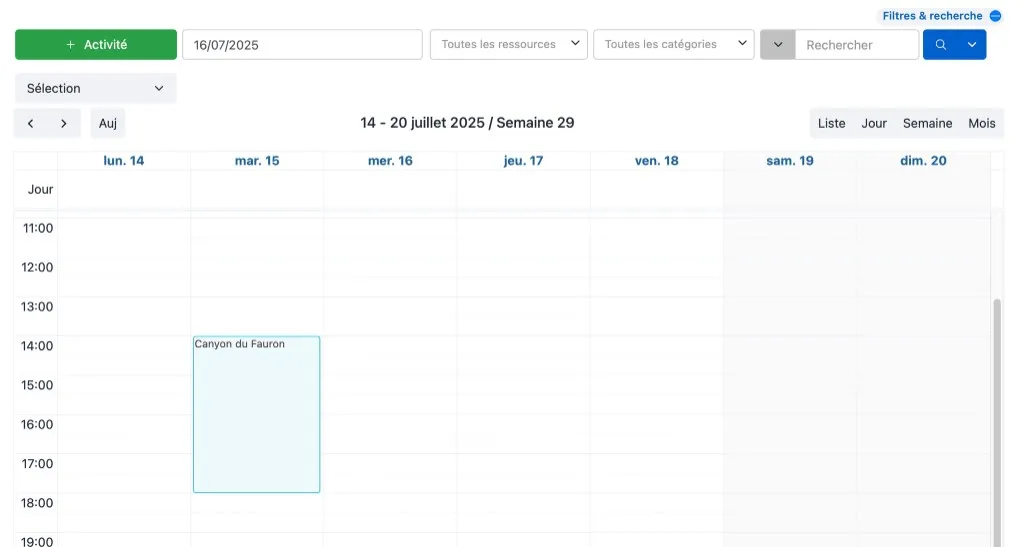
Place the first slot
- Open Schedule (Week view recommended).
- Add the activity on the first date you need (drag-and-drop or draw the slot).
Repeat with Copy
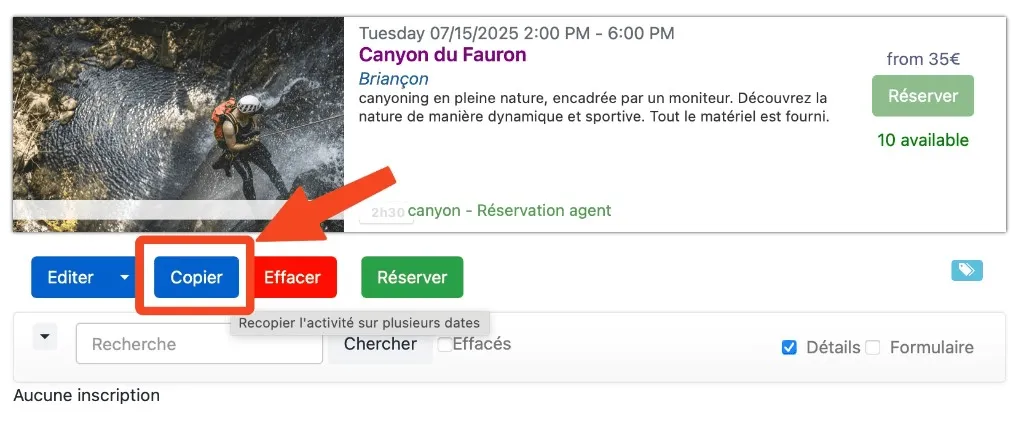
- Open the activity and click Copy.
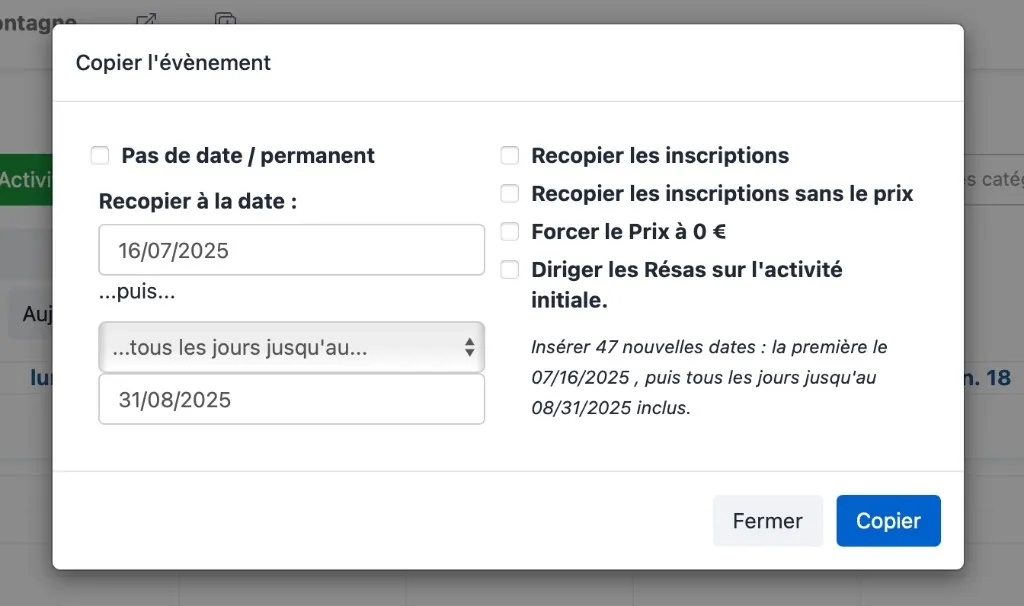
- Set the copy start date, frequency (every day, every week, every month), and end date.
Copy several slots together
To duplicate several activities on the same dates (e.g. two slots every week):
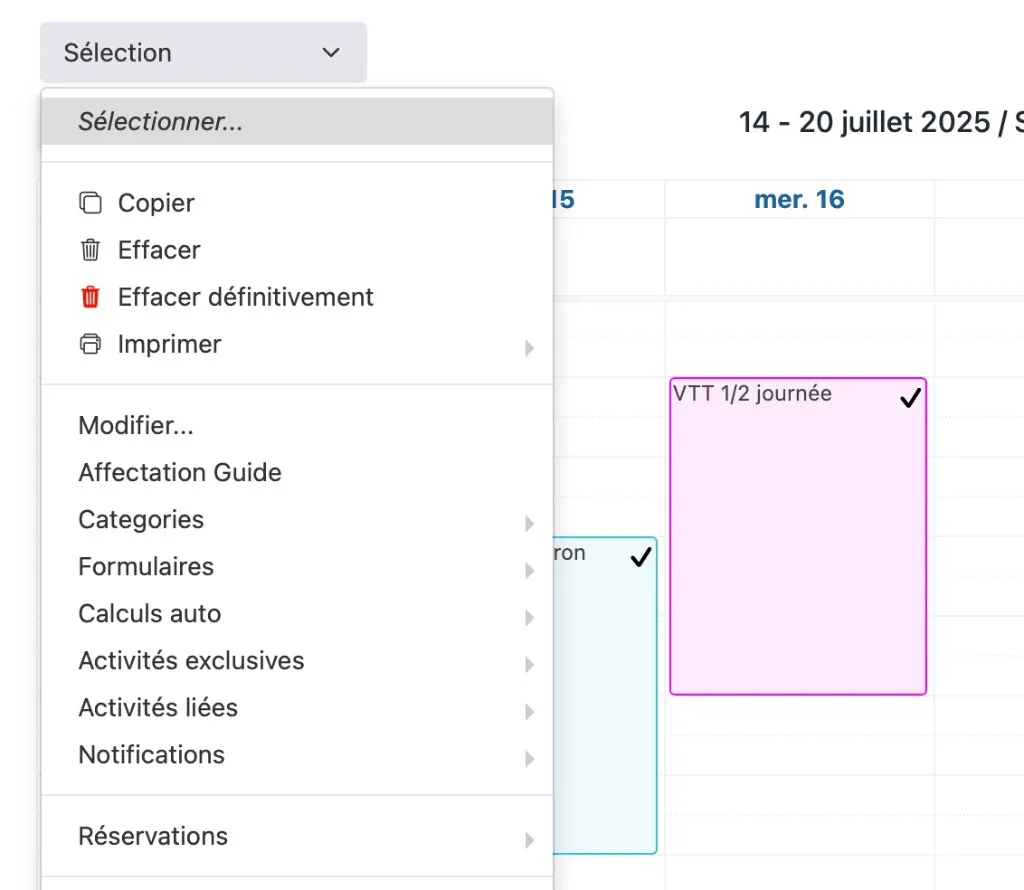
- Switch to Selection mode and check the relevant activities.
- Open the Copy menu and set the recurrence.
- Make sure the start day matches the reference day of the selected slots.
For a complex weekly pattern, repeat the operation for each week involved, or copy activity by activity.
